July 5, 2019

A new threat to users on “Incoming Calls” – VISHING


VISHING – a new way of hacking people, to steal amount from their bank account, credit card and similar. Recently, some people received a call on their mobile phone and affected. They lost approx. Rs. 80,000 within 05 minutes from their personal credit card account. This communication is to inform you and understand the scam to safeguard yourself. VISHING calls are drastically increased across India due to no/less awareness on this fraud.

VISHING (Phishing through Voice) is a verbal communication (e.g. VOIP or phone calls) used by an unauthorized person "pretending" to be from reputable bank/company. Their aim is to manipulate individuals into revealing financial information or transferring money to them.


How it happens?
  1. Hacker obtains information from various sources, e.g. social media, e-commerce sites, leaked database, unsecured app installed in user phone etc.
  2. Hacker calls victim and pretends to be an official from reputed organization, e.g. bank, company etc.
  3. Hacker convinces victim that they are from real company and they do have good offers/benefits for victim, e.g. reward points, cashback, coupon codes etc.
  4. Victim falls for it and tries to claim it as per guidance.
  5. Hackers dictates instructions to victims to claim it.
  6. Hackers uses account details shared by victims immediately.


How to protect yourself from Vishing?
  1. Do not rely on unknown calls and never share vital information to them.
  2. Disconnect the call immediately in case of any doubt.
  3. Call the bankers/company to their numbers only provided on their websites or official sites.
  4. Do not install unsecured apps in your smart phone. Installing any such apps asks for permission to access contacts, media, files from your phone. Once you granted the access, consider you are hacked. These apps can read messages (e.g. OTP received, emails etc.), personal details, or other contents from your phone.
  5. Never share OTP, CVV, ATM PIN of your card, or any such vital account details.


February 3, 2018

Session Storage - a client-side state management technique

In web application development, storing values in client side has limited options and those have their own limitations. For example, it can be hard to store data manipulated using web scripting languages as jQuery, JavaScript etc. Most of the time user prefer to store such data in session variable, to avoid overhead calculation of data or reading it again from repository.


HTML5 has introduced additional client-side state management variable called “session storage”. This is supportable to the browser which does support HTML5, as IE 8/above, Firefox 3/above, Safari 4/above etc. Session storage can store string type of variable in client side in simple and easy steps. Reading and writing in to session storage is quite simple. An example is shown below, please note the code is written using jQuery.


Set a value in session storage:
sessionStorage.setItem("name", “Navin Pandit”);


Read a value from session storage:

sessionStorage.getItem("name");


Store an object data

To store an object data in session storage, you need to convert it in to string type. An simple example given below, shows to store an object data.

var obj = {“name”:”Navin Pandit”, “country”: “India”, “url”:”navinpandit.blogspot.in”};
sessionStorage.setItem("myObj", JSON.stringify(obj));

var obj = JSON.parse(sessionStorage.getItem("myObj"));


January 27, 2017

Failed to call controller method using AJAX in MVC 4 when deployed in IIS Server

Have you ever faced this issue in ASP.NET MVC? I found this issue after deploying my MVC application in IIS server, I shocked as it was working fine in local system but in hosting server it was not. Tried to search solution over the net but non of the solution worked for me. Finally I changed the URL verb and it was resolved. The detail of error is given below, hope it will be useful for someone.


ERROR:

Failed to load data..{"readyState":4,"responseText":....some HTML tag..\r\n \r\n The resource cannot be found.\r\n \r\n


SOLUTION:

Solution is pretty simple, use "../" in your SRC instead of "~" symbol.


Updated on https://www.codeproject.com/Answers/790566/Failed-to-call-controller-method-using-AJAX-in-MVC?cmt=914340

December 28, 2016

Exception: This document already has a 'DocumentElement' node Exception in C#

While manipulating an XML file I came across with this exception and googled it out for solution. I found many stuffs but none of those were relevant and could not resolve my problem. After few minutes of analysis, I came to know that I was doing something wrong.


I was trying to add element directly to XML document, which was not correct. It should be added within the root element. I changed my code accordingly and it was resolved. Full XML file and C# code is given below. Hope this will be helpful for others, and please feel free to add comments or any queries.


XML file:


C# code:

XmlDocument doc = new XmlDocument();
            doc.Load("xml_file_path");

            // Create new element:
            XmlElement book = doc.CreateElement("Book");

            // Create child elements:
            XmlElement title = docDestn.CreateElement("Title");
            title.InnerText = "Mastering in ASP.Net 4.5";

            XmlElement author = docDestn.CreateElement("Author");
            title.InnerText = "Unknown Author";

            XmlElement version = docDestn.CreateElement("Version");
            title.InnerText = "V4.5";

            book.AppendChild(title);
            book.AppendChild(author);
            book.AppendChild(version);

            // Read the root node:
            XmlNode root = doc.SelectSingleNode("AllBooks");
            root.AppendChild(book);
            doc.Save("xml_file_path");

July 29, 2016

Microsoft message queue (MSMQ) in C# and .NET

This article is written based on Microsoft Windows 7 using C# and .NET framework 2.0.


Microsoft message queue (MSMQ) is one of the technique with which you can achieve communication between two application processes running in same machine, under Windows platform.

To use MSMQ, you need to add reference System.Messaging explicitly in to your project and then you can avail its functionalities. Two very basic functions of MessageQueue class are Send() and Receive().

Send() method sends data to the message queue while Receive() method reads data from the message queue.

Microsoft Windows OS have three types of message queuing techniques and those are: -
1. Outgoing queue
2. Private queue
3. System queue

To view a queue, right click on MyCoputer -> Manage, expand Services and Applications and then expand Message Queuing. All queue used to enlist here, under the respective category that you have chosen while creating a message queue.


C# code to send send and receive data:


// Write data:
            string qPath = ".\\Private$\\MyQueue";
            MessageQueue mq;

            if (!MessageQueue.Exists(qPath))
            {
                mq = MessageQueue.Create(qPath);
            }
            else
                mq = new MessageQueue(qPath);

            Message msg = new Message();
            msg.Label = "TestQueue";
            msg.Body = "This is a test method.";
            mq.Send(msg);


// Read data:
try
            {
string qPath = ".\\Private$\\MyQueue";
Message msg = new Message();
                  MessageQueue msQ = new MessageQueue(qPath);
                  msg = msQ.Receive();
msg.Formatter = new XmlMessageFormatter(new Type[] { typeof(string) });
                  string msgReceived = msg.Body.ToString();
            }
            catch { }


Possible Errors:

1. The queue does not exist or you do not have sufficient permissions to perform the operation.
This is because if you havn’t created any queue or the queue does not exist and you are trying to use a queue. Conditional check  if(!MessageQueue.Exists(qPath)) generally resolve this error.

    2. Cannot find a formatter capable of reading this message.
    This is because you have not defined the respective format of received queue data. Below code can be used to define formatter.

    msg.Formatter = new XmlMessageFormatter(new Type[] { typeof(string) });

    Here, I have used XML format and therefore, used XmlMessageFormatter class. Please change in your code for its format accordingly.

    3. Message Queuing has not been installed on this computer.
    This occurs if your system has not installed MSMQ. To install MSMQ in your system, go to Control Panel-> Programs & Features->Turn Windows features on or off -> Microsoft Message Queue (MSMQ) Server -> enable and click OK. If system prompts to restart, please allow it to complete the task.

    February 17, 2016

    Pointer in C#, use of unsafe keyword

    In this article, we will understand the concept of pointers in C# and how we can use it in our C# code. While learning, I heard that C# does not support pointer which is not exactly true. It does support pointers but we do not have full control over it as in C++. Basically, to maintain type safety and security, C# does not support pointers but by explicit changes we can work with C# pointers.


    Use of 'unsafe' keyword

    By using ‘unsafe’ keyword, you can perform an operation that deals with pointers. Code or method used ‘unsafe’ modifier does not mean it is not safe but it is not verifiable by CLR. Unsafe code blocks are not dangerous but its safety does not verified by CLR, means if you are using pointers it is your responsibility to handle security risks and pointer errors.

    • Unsafe keyword can be used with- methods, types or code blocks.
    • Use of ‘unsafe’ keyword introduced security risks, as these are not handled by CLR and it is developer’s responsibility to manage all.
    • Use of ‘unsafe’ keyword can increase the application’s performance as it directly working wit memory addresses.

    Defining with ‘unsafe’ keyword

    Example: 1
    public unsafe void TestUnsafe()
    {
        //TODO:
    }

    Example: 2
    public void TestUnsafe()
    {
        unsafe
        {
           //TODO:
        }
    }

    Compiling above code you may get below error:

    Unsafe code may only appear if compiling with /unsafe

    To resolve it, right click on project > properties >
    Select ‘Build’ tab, check the option for ‘Allow unsafe code’. Save it and now compile.


    December 15, 2015

    Scroll bar disappears on minimizing of window - C# .NET winform

    Introduction

    While working on windows based project, I found a strange issue - on minimizing of window to task bar and returning to its normal state by maximizing, some of its controls and scroll bar were disappearing. Those get displayed automatically on changing of window’s state or re-sizing of the form.

    I tried lots to find out its solution over internet but I did not found any good solution, what I found is that this is a .NET bug which has been fixed in framework 4.5, whereas I was using .NET framework 3.5, and therefore looking for alternate solution. For detail, you can visit:

    http://www.codeproject.com/Questions/124373/scrollbar-disappears-while-resizing-the-window


    Solution


    While discussing with my senior, I found a hint about to override base class method OnSizeChanged(). After fighting with code lines while RnD and using Visual Studio class editor help, I found the solution what exactly I was looking, and the solution is given below:


    protected override void OnSizeChanged(EventArgs e)
    {
    if (this.WindowState == FormWindowState.Maximized || 
    this.WindowState == FormWindowState.Normal)
           {
                  base.OnSizeChanged(e);
           }
           if (this.WindowState == FormWindowState.Minimized)
           {
                  this.ctrlId.ResumeLayout();
           }

    }


    Understanding the code

    Override base class method OnSizeChanged() in your form class to restore form state, on conditional basis. For window’s minimize state, call ResumeLayout() method to resume controls layout as well its data. For window’s maximize and normal state, call base class method OnSizeChanged() to refresh the form controls.


    Remark

    In my case, ‘Dock’ property could not resolve my issue. This solution is not a rocket science but as this issues I have faced was strange and therefore, I wish to share it, someone my take help from this.

    December 1, 2015

    Format string with String.Format() method in C#

    While programming you may need to build human understandable line(s) or para with dynamic values. In such cases, mostly developers either choose string concatenation or StringBuilder option in C# language.

    Manipulating strings with these results in mutability and immutability. For detail, please read difference between string concatenation and StringBuilder. Is it ok for frequent use, or in case of looping, or for large strings manipulations?

    Consider second case of formatting string with some calculated dynamic values, e.g.
    1. Decimal values to currency format,
    2. Splitting of date and time from DateTime value,
    3. Multiple string manipulation etc.

    These may become tricky or lengthy, if you choose general programming concepts. Also, to display user friendly messages, always in demand.

    With this article, we will understand how effectively we can format dynamic value with certain constant string line(s) or in paragraph, with less number of code lines. C# provided String.Format() method to do so. Let see few examples to understand it easily:

    Example: 1


    decimal d = 19.789M;
    String.Format("The currency value is {0:C2}", d);

    Output: The currency value is $19.79

    // $ will return if you have chosen culture en-US, otherwise respective currency symbol will return.
    Suffix ‘2’ with ‘C’ defines number of precision pint after decimal.
    ---------------------------------------------------------------------------------

    Example: 2

    String.Format("This message generated on {0:d} at {0:t}", DateTime.Now);

    Output: This message generated on 12/1/2015 at 2:24 PM
    ---------------------------------------------------------------------------------

    Example: 3

    string name1 = "John", name2 = "Bob";
    String.Format("Hello {0}, you have a message from {1}", name1, name2);

    Output: Hello John, you have a message from Bob
    ---------------------------------------------------------------------------------


    For detail about format standards, please visit https://msdn.microsoft.com/en-us/library/dwhawy9k(v=vs.110).aspx

    April 20, 2015

    Nuget error: The underlying connection was closed

    ERROR: Visual Studio 2010 nuget error: The underlying connection was closed: Could not establish trust relationship for the SSL/TLS secure channel.


    Solution:
    Go to VS2010 -> Tools -> Library Package Manager -> Package Manager Settings
    Choose Package Manager -> Package Sources.
    1. Add a new package source as:
    Name= NugetSource
    Source= http://packages.nuget.org/v1/FeedService.svc/
    2. Move Up the newly added package source to first position.
    3. UnCheck existing "Nuget official package source"
    4. Restart VS2010.

    March 16, 2015

    Read HTML table using JavaScript or jQuery

    Read complete HTML table- rows & columns values using JavaScript/jQury. To understand this article, you should know about basics of HTML & JavaScript.

    Read HTML table by its id attribute:
    var table = document.getElementById('table_id');

    Read rows count in the HTML table:
    var row_count = table.rows.length;

    Read columns count in the HTML table:
    var col_count = table.rows[i].cells.length;


    You can iterate to read all column values including headers:

    for (var i = 0; i < table.rows.length; i++) 
    {
    var colmns= table.rows[i].cells;

    for (var j = 0; j < colmns.length; j++) 
    {
    if (i == 0)
    // Read column-header values:
    table.rows[i].cells[j].children[0].innerText;
    else
    // Read column-rows values:
    table.rows[i].cells[j].innerText;
    }
    }

    .innerHtml - returns HTML element within the specified cell.


    .innerText - returns text value within the specified cell.

    January 15, 2015

    Eliminate dead codes to avoid extra code maintenance

    Dead/unreachable codes and member variables:

    While working with large projects, silly mistakes are common and those may cause memory or performance issues. Developers used to write method and later some methods either they change or comment. This generally happens in case of frequent requirement change. If you have commented the method and function call then there is –“no comment”. But in case you have commented method call and you haven’t commented method definition, or method defined but never used, or variables declared but never used, what about the memory occupied by instance of such class? These codes called as dead codes or in general unreachable codes. Generally, Visual Studio does provide blue under line for unused variables but they have no such facility to unused methods.

    The problem with these are- more about that you have to care and maintain extra code that is not in use. Also typically when you are about to delete an unused code elements, this might provoke asking questions which lead to interesting answer and even bug finding. Is it simple to handle all these for large projects where hundreds of classes designed and thousands of lines coded? NDepend provides to eliminate such issues within a minute.


    Here, I have defined two variables and one method but never used those. And these we can call it as dead codes. NDepend installed Visual Studio provides a red bubble on bottom right, on click to this a window will popup which lists out all dead codes.


    Or, in alternative way:


    November 11, 2014

    Working with NDepend


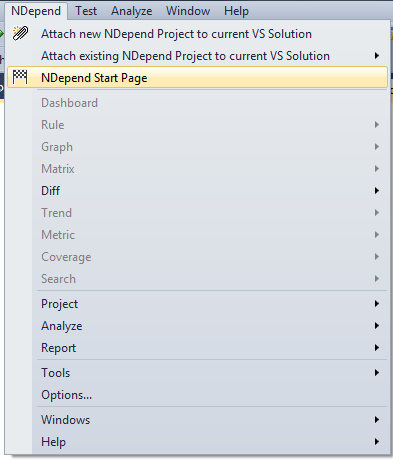
    NDepend is a software tool which can be integrated with Visual Studio. After successful installation, you can see an NDepend menu option in your Visual Studio menu bar. Most of the sub-menu may be disabled. Here, I have integrated NDepend with MS Visual Studio 2010. To work with, select menu:


    NDepend > NDepend Start Page


    The start page will display solution analysis link and can be look like as shown in figure below.


    To analyze your project and solution, click on link “Analysis VS Solutions and VS Projects”.

    It will pop up a child window which will display all solution files available in your system. You can select any solution file or can browse a solution from “Browse” button and then click OK.

    In next window, it may ask to choose an assembly from list of assemblies. For this just click on “Analyze .Net 4 assembly” button, now you can see all the sub-menus have been activated.


    Dashboard:

    The dashboard will display summary of your project solution including- lines of code, method complexity, code rules, rules violated, types, percentage of comment lines, third-party usages and related. A summary dashboard you can see in below image.


    To be continued in next article, detail about working of NDepend.

    October 24, 2014

    Software Quality Assurance (QA) and NDepend

    Background:

    Software quality is not limited to testing for strong validations, security and vulnerabilities but also depends upon its architecture, coding standards, and defined business logics.

    Quality assurance (QA) generally does by separate quality team in software industries and qualifies it after validations, security, vulnerabilities and performance testing. Testers do not have any idea about coding standards and business structures used behind the scene. Now the question arises, if coding guidelines and business structure are not defined properly then does the software will be really a quality product?

    Object oriented (OO) concepts are not a piece of cake. Understanding, coding and managing software program in object oriented paradigm (OOPs) is really a big challenge in software development.

    Consider you are the lead of a project and numbers of programmers are programming. Your assigned project is really big, then how you will assure about its quality in terms of coding standard, unless you do not have thorough knowledge about written codes? Second thing, is it an easy task for you to review entire project code lines and to decide whether the implemented concepts are write or wrong? Where the programmers have violated the rules? What could be the best approach? To find the variables defined but never been used? What are the dead codes? Rules violated, project dependencies, third party DLL(s) used in it? Not limited to these only, but numerous of similar challenges comes while handling large projects, because you can never assume all the programmers have same understandings.

    Before, to overcome these problems, you need to do hard work to review and find all code logic written in assemblies or in project scope. But now a day’s tools are available in market those can really make your task easy and accurate.


    NDepend: Your project review partner.

    One of the tools I discovered is NDepend. This tool finds all the dependencies, assemblies used in project, reviews the code lines, classes & OOPs methodologies implemented and finally gives you a visual report from where you can easily monitor and track the limitations as well rules violated in your class libraries. Nevertheless, it has a user friendly dashboard which shows graphical representations of entire code activities, dependencies, code rules, rules violated, types, percentage of comment lines, third party tools used and similar.


    October 16, 2014

    Error: The type or namespace name 'Ajax' does not exist in the namespace System.Web.Mvc

    ASP.Net MVC ERROR: The type or namespace name 'Ajax' does not exist in the namespace 'System.Web.Mvc' (are you missing an assembly reference?)


    Solution:

    Right click on respective referenced .dll, go to 'Properties', set property Copy Local = True, and then rebuild.

    Error: Entity framework "Cannot convert from 'System.Data.Objects.ObjectParameter' to 'System.Data.Entity.Core.Objects.ObjectParameter"

    Entity Framework ERROR: Cannot convert from 'System.Data.Objects.ObjectParameter' to 'System.Data.Entity.Core.Objects.ObjectParameter[]' entity framework 6


    This is one of most frequent compile time error you may face in Entity Framework. This is because either of:

    1. Version conflict or
    2. Namespace used.


    By default, while compiling project, framework includes namespace using System.Data.Objects;


    Solution:

    To fix this issue:

    If version conflicts, install package for respective version of EF.

    If version is same, change the above namespace to System.Data.Entity.Core.Objects 


    July 17, 2014

    Read excel file using C# and .NET

    With C#, we can read excel file data and can store it into DataTable object easily. To do this, you may need to install and prepare development environment as well in the system wherever you want to deploy this application. This is one of the probable solution and is not limited to. Also, I have developed and tested this in Windows environment only, no idea about other OS. Development environment: OS Windows 7 32bit, VS 2012, Excel 2013.


    Prerequisites:

    1. Download and install "Data Connectivity Components".
    2. Register msexcl40.dll located in C:\Windows\System32
    3. Register oledb32.dll located in C:\Program Files\Common Files\System\Ole DB


    Create an excel file. Here, I have created with name Test.xlsx as shown in figure below.


    Lets move to C# code. To work with excel file, you need an OledbConnection object to communicate with the .xls/.xlsx file. OLEDB (Object Linking and Embedding, Database) is an API designed by Microsoft to access data with variety of sources like excel, access etc. in a uniform manner.
    Another object we need is OleDbDataAdapter, to fill data into DataTable object. The method is as simple as communicating database.

    using System.Data.OleDb;

    OleDbConnection con = new OleDbConnection("Provider=Microsoft.ACE.OLEDB.12.0;Data Source='file_path';Extended Properties='Excel 12.0;HDR=Yes'");
    // file_path should be complete file path. Example: E:\\TestData\\Test.xlsx
    // HDR = Yes/No. If Ist row is column name, set HDR = Yes.

    DataTable tbl = new DataTable("Particulars");
    OleDbDataAdapter adp = new OleDbDataAdapter("SELECT * FROM [Sheet1$]", con);
    // Sheet1$ : The name of sheet/tab in excel file, you want to read.


    adp.Fill(tbl);


    And the object "tbl" output has shown in figure below.


    Probable error(s) could be possible:

    1. 1. The 'Microsoft.Jet.OLEDB.12.0' provider is not registered on the local machine.
    2. 2. Could not find installable ISAM.
    3. 3. External table is not in the expected format.


    The above error(s) can be possible if:-
    1. Connection string is incorrect or Microsoft.ACE.OLEDB.12.0 and Excel 12.0 are different version.
    2. msexcl40.dll and/or oledb32.dll are/is not registered properly.
    3. You are building your application with 64bit but application does not support it. If any of such issue(s) still persists, change platform target to 32bit. To do this, right click on project, click properties, navigate to Build tab, set Platform target to x86.


    Hope this will help you and you enjoyed the codding.